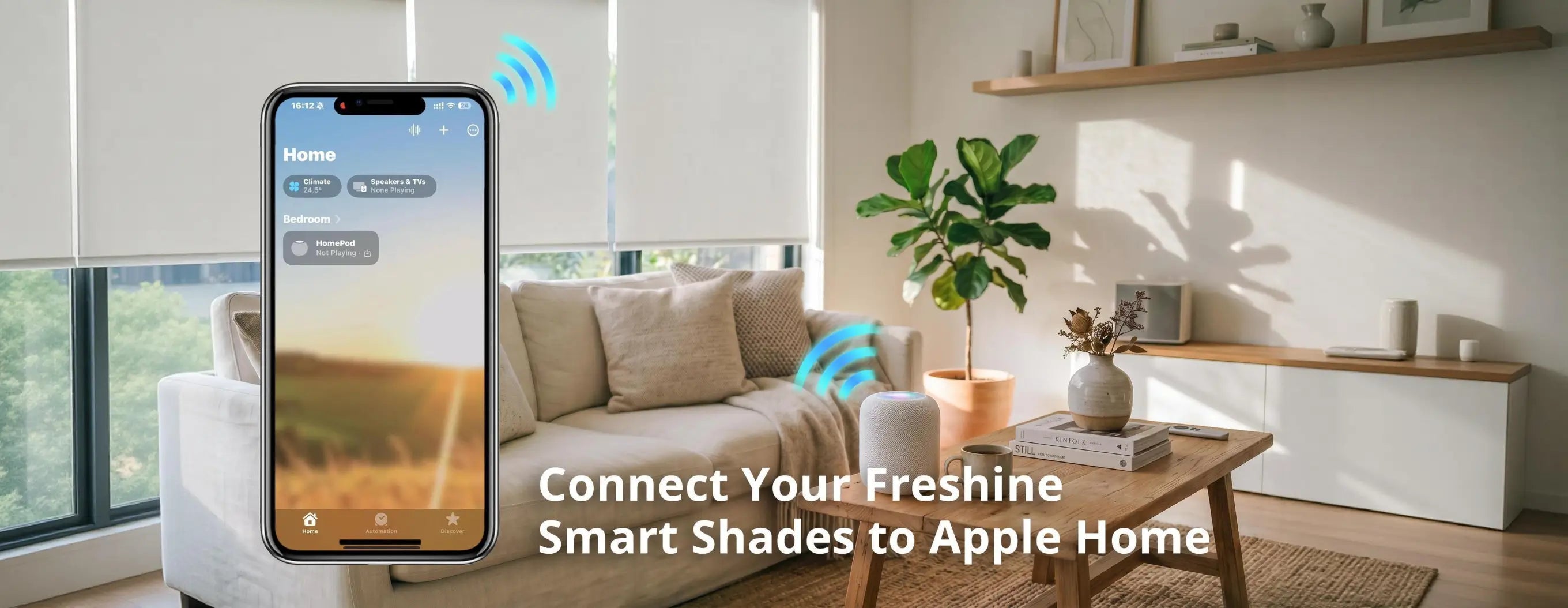















Connect Your Freshine Smart Shades to Apple Home

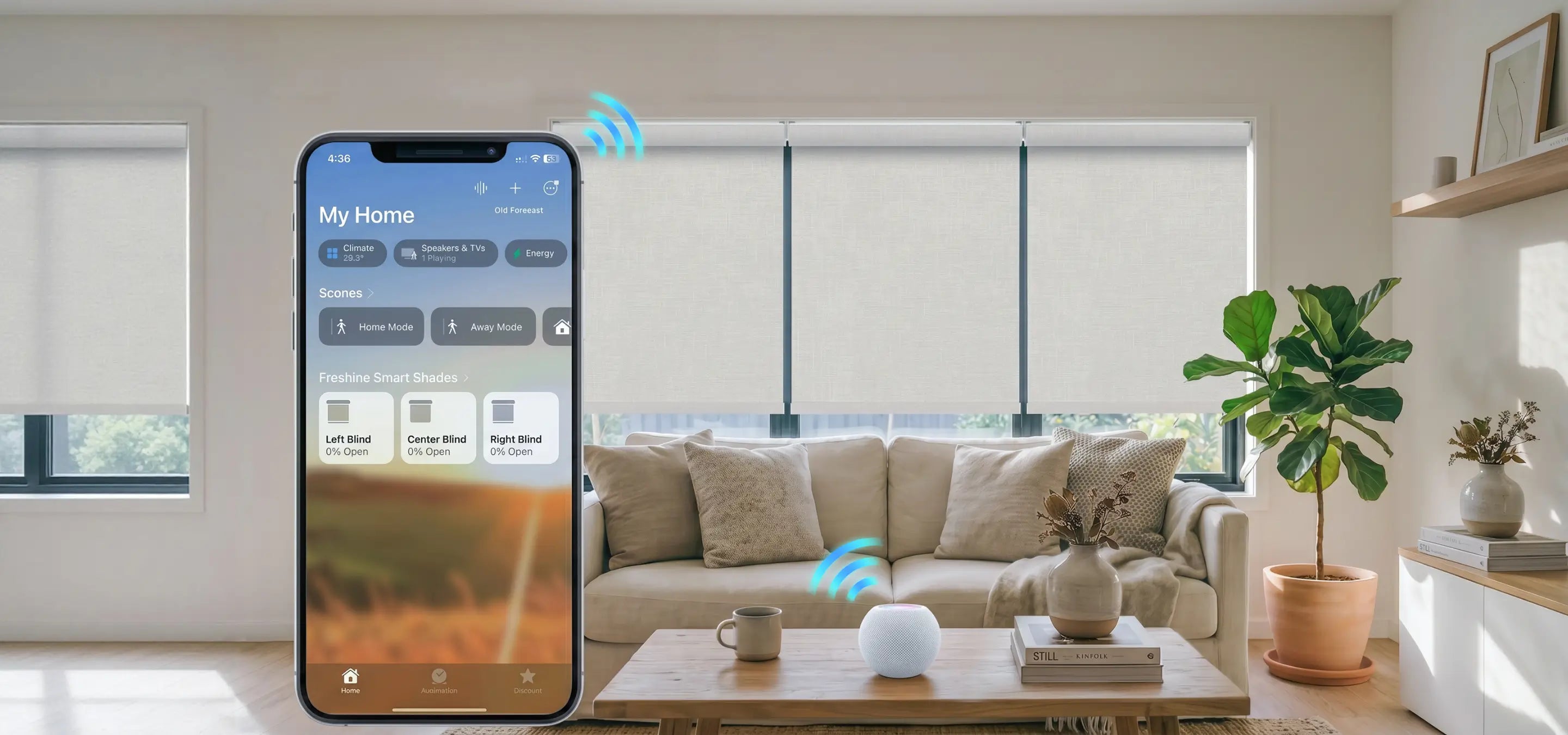
Please ensure the following requirements are met before starting the setup process:
· Your iPhone or iPad is connected to a 2.4 GHz Wi-Fi network.
· Apple Home is already set up on your device.
· A HomePod, Apple TV, or Home Hub is connected if you plan to use automations and remote control.
· Your Freshine smart shade is powered and ready for pairing.
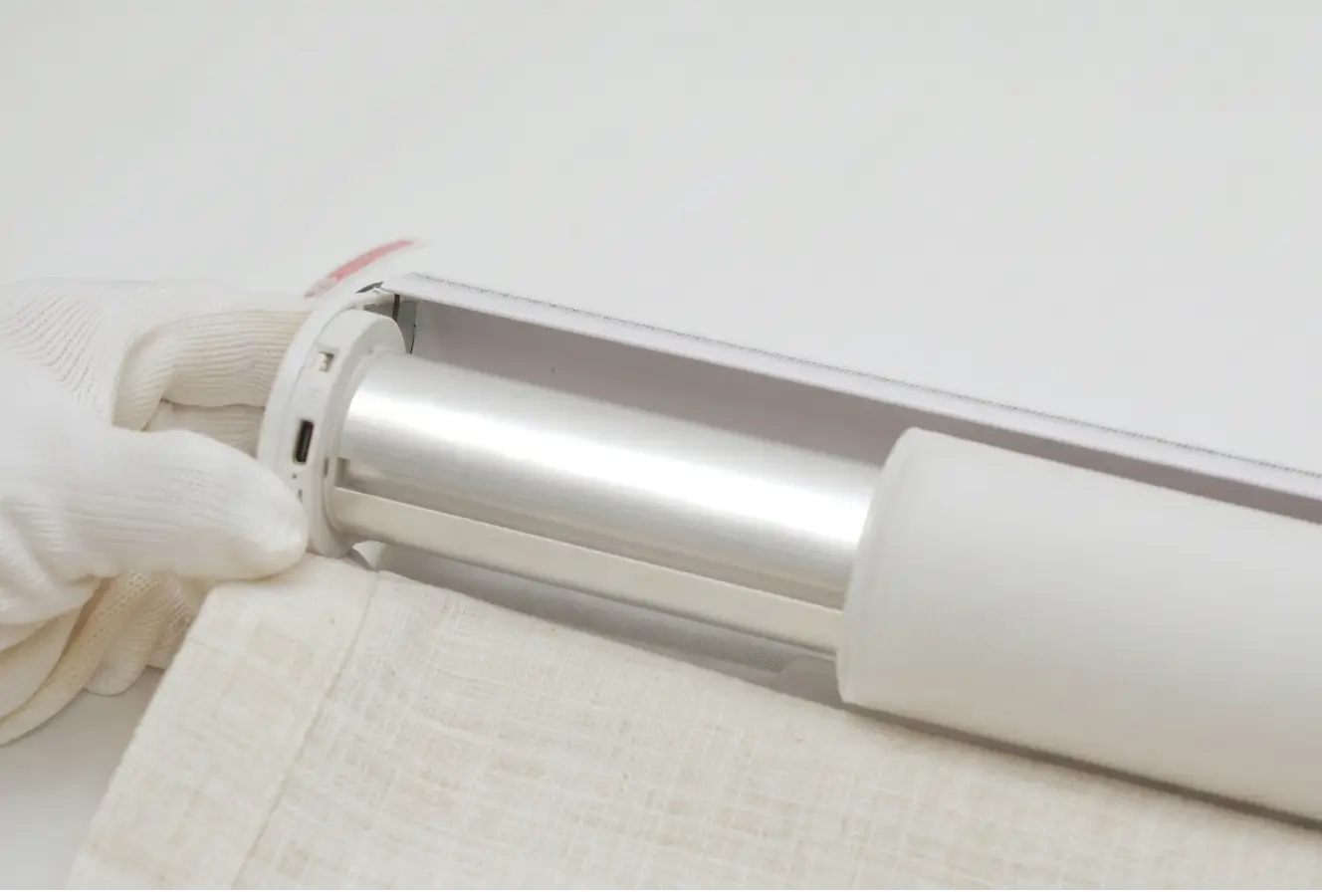
Locate the programming button on the motor.
Press and hold the button for approximately 5 seconds until the motor jogs twice. This indicates that pairingmode has been activated and the shade is ready to connect.

Step 2: Open Apple Home


Open the Apple Home app.


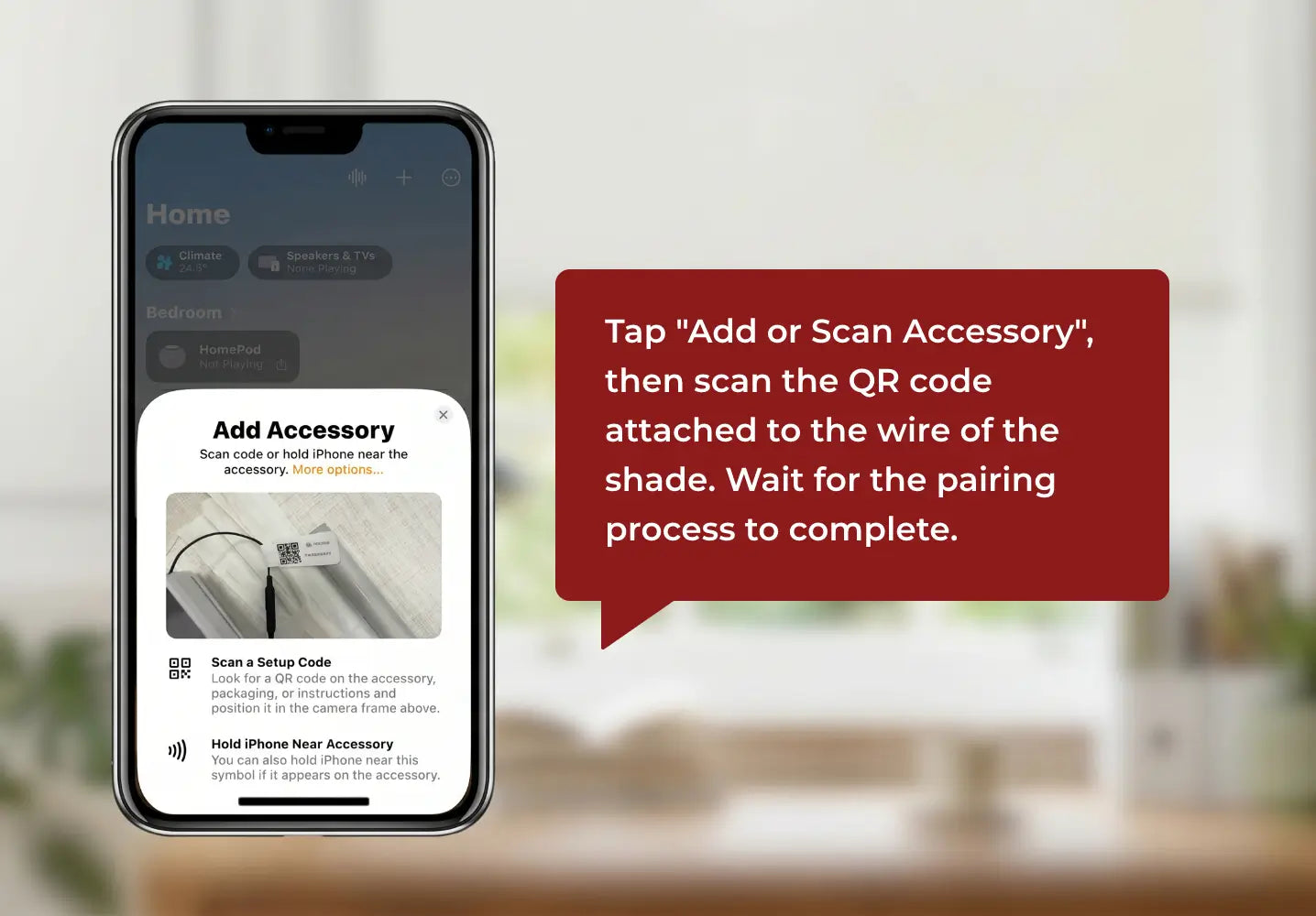
Tap the "+" icon.


Select "Add Accessory."
Scan the HomeKit QR code included with your shade.
If prompted, confirm that you would like to add the accessory to your home.
The pairing process will begin automatically.


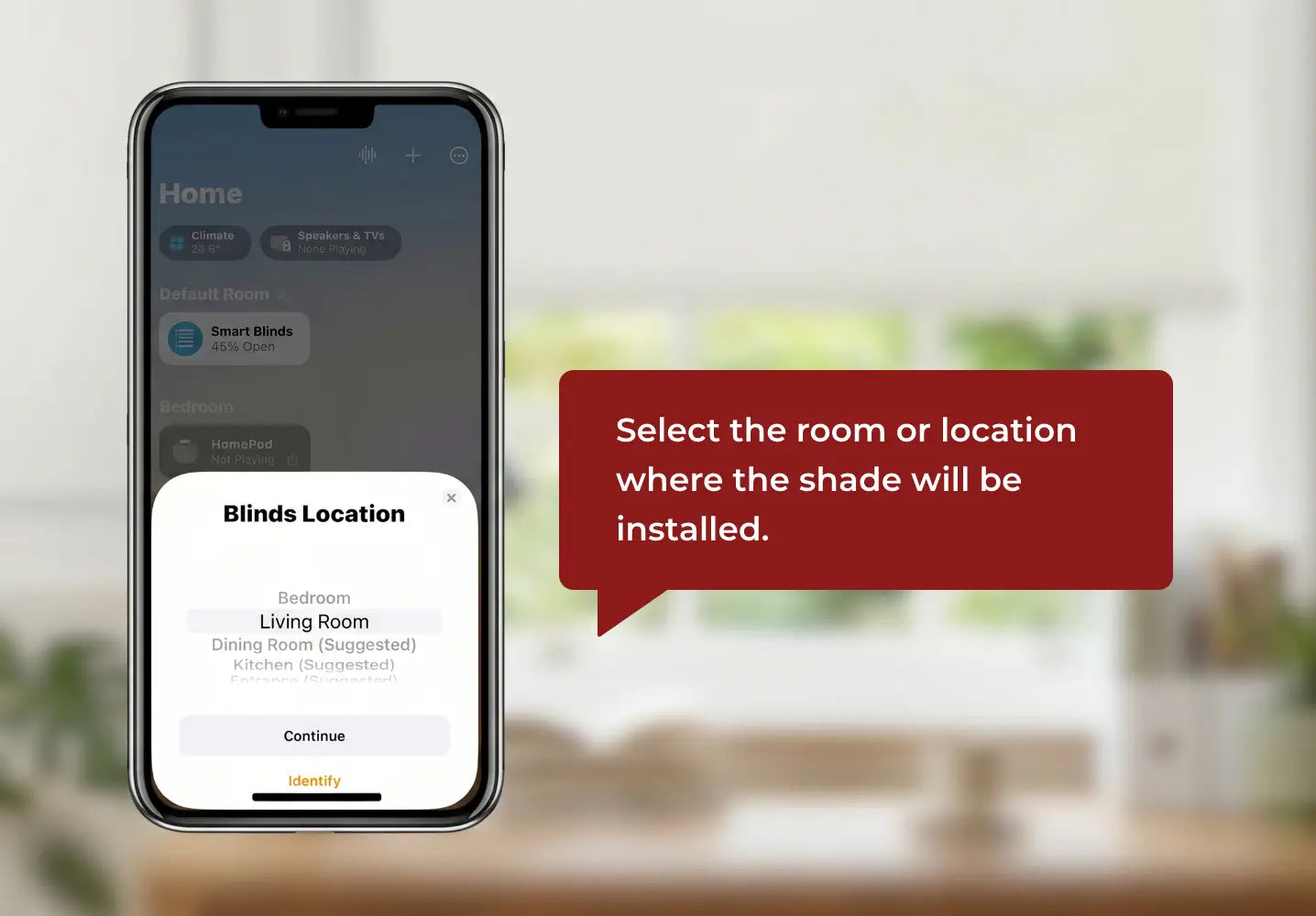
Choose the room where the shade is installed.Assigning the correct room makes it easier to organize devices and create automations throughout your home. Examples: Living Room/Bedroom/Kitchen/Dining Room/Office.
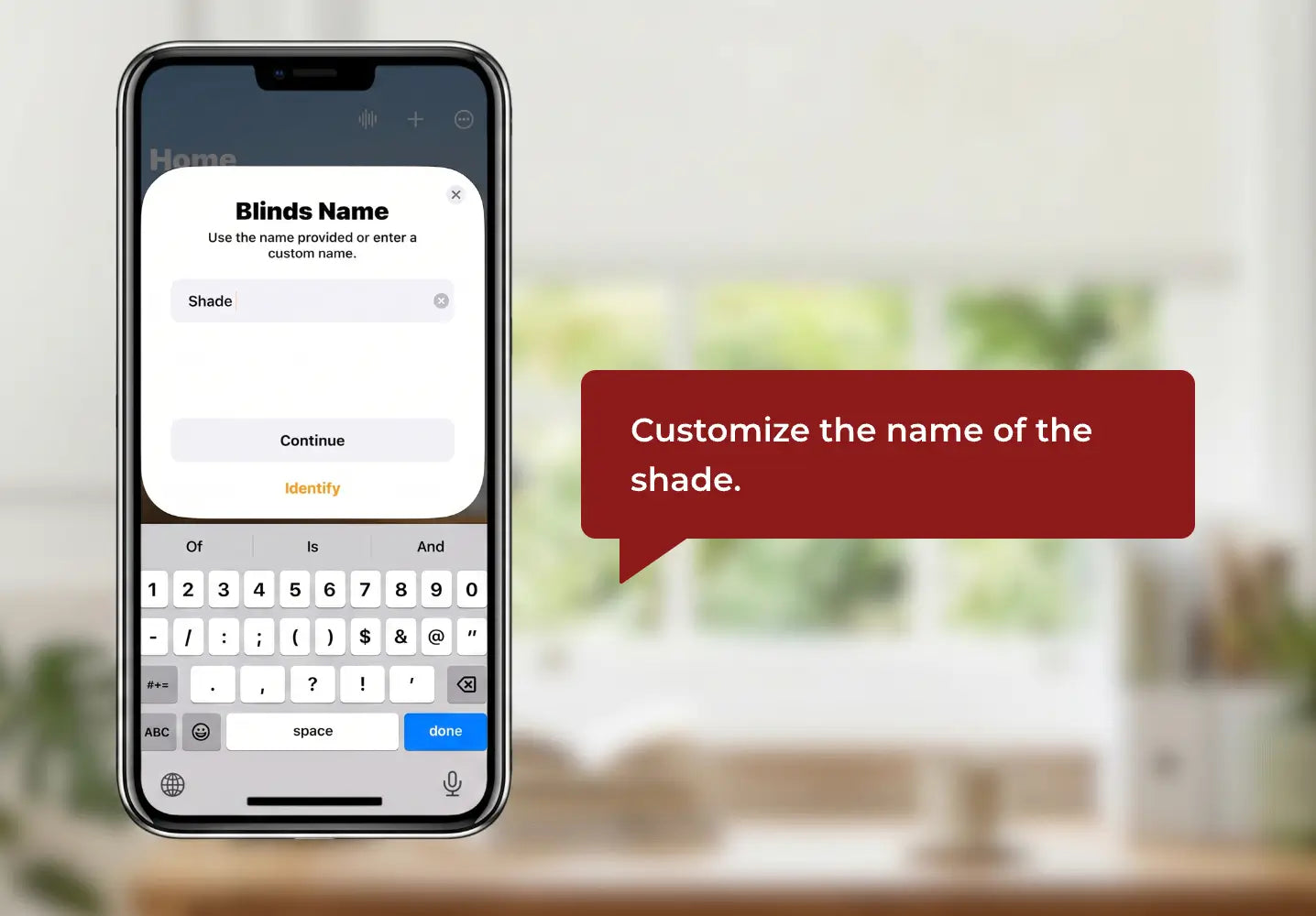
Create a custom name for the shade.Choose a clear and descriptive name that works naturally with Siri commands.Examples: Living Room Shade/Master Bedroom Shade/Kitchen Roman Shade/Office Window Shade.


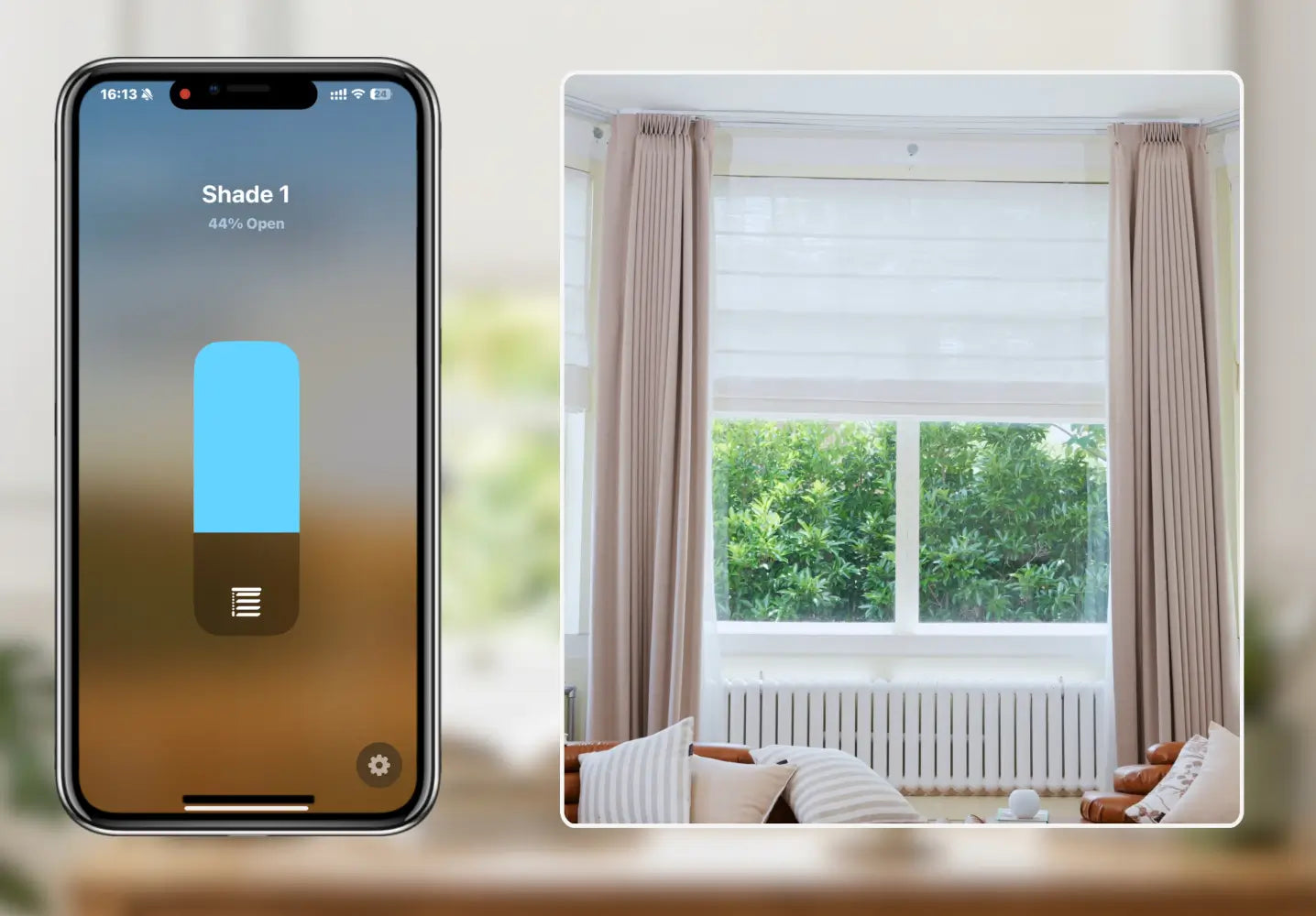
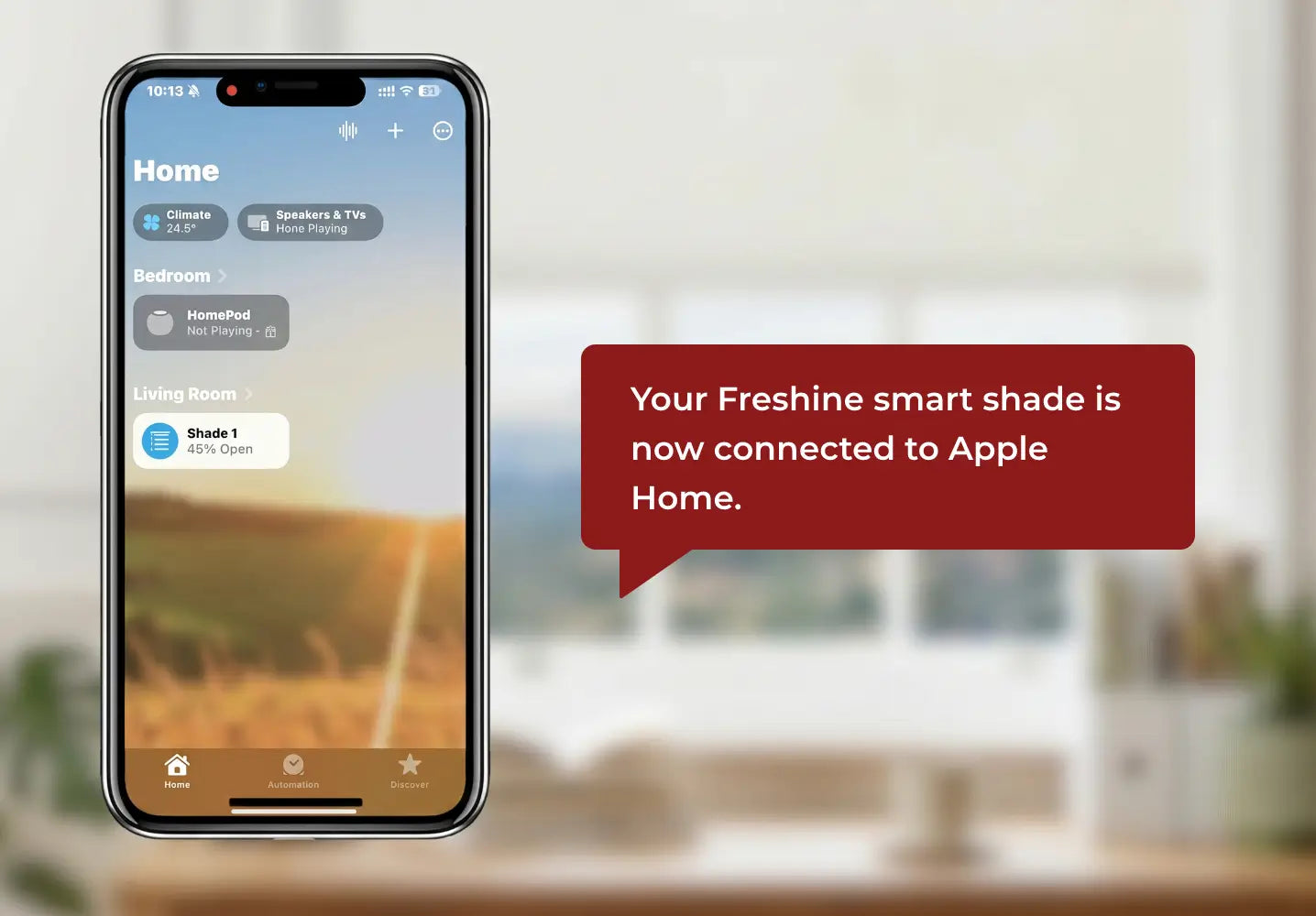
Once setup is complete, Apple Home will display your shade controls.
Use the slider or tap the control button to:
· Open the shade
· Close the shade
· Adjust intermediate positions
Verify that the shade responds correctly before finishing setup.
Your Freshine smart shade is now connected to Apple Home.
You can immediately begin controlling it from:
· Apple Home App
· Siri Voice Commands
· Apple Watch
· HomePod
· Automations and Scenes


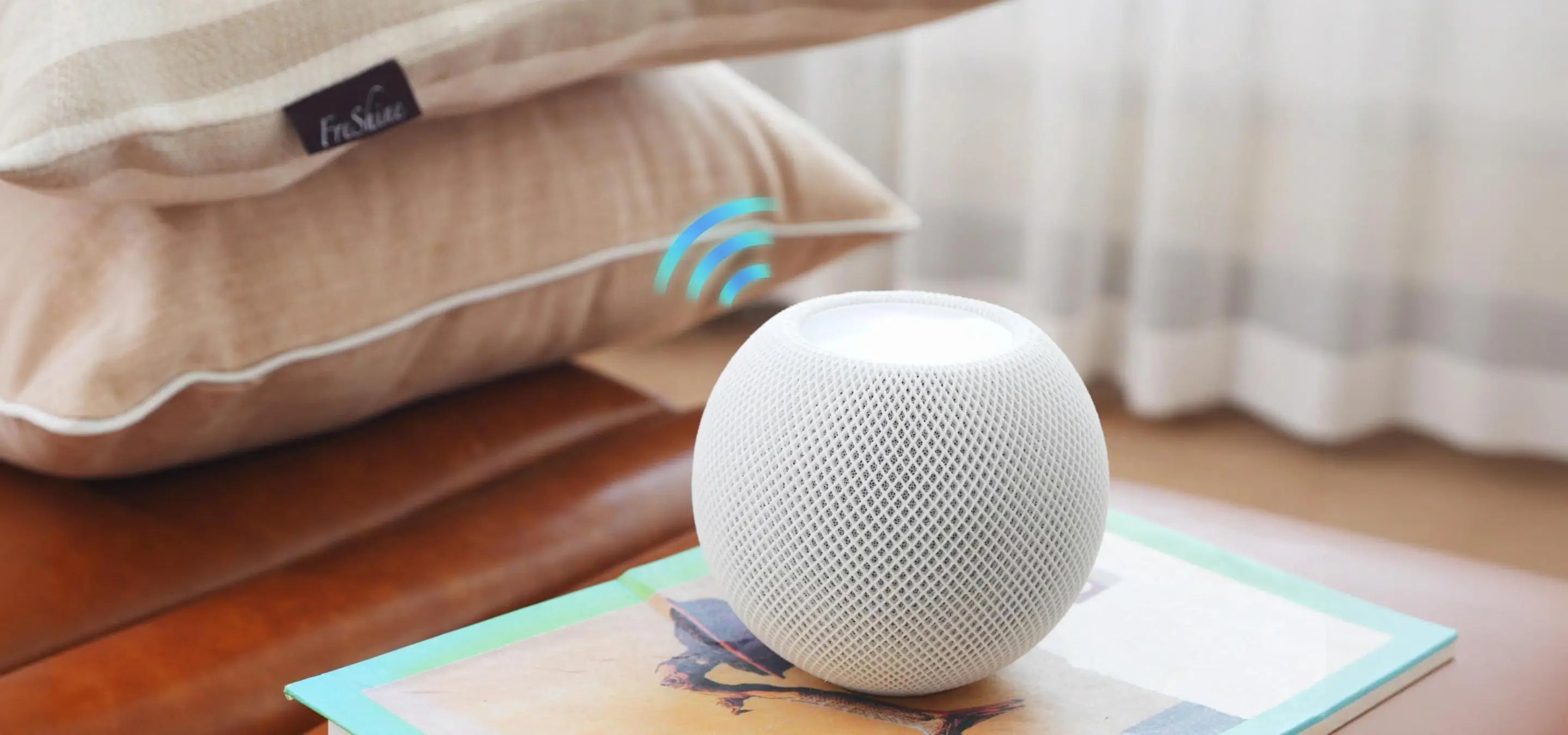
After setup, simply use Siri to control your shades.
Examples:
"Hey Siri, open the living room shades."
"Hey Siri, close the bedroom shades."
"Hey Siri, set the office shade to 50 percent."
Create Smart Automations

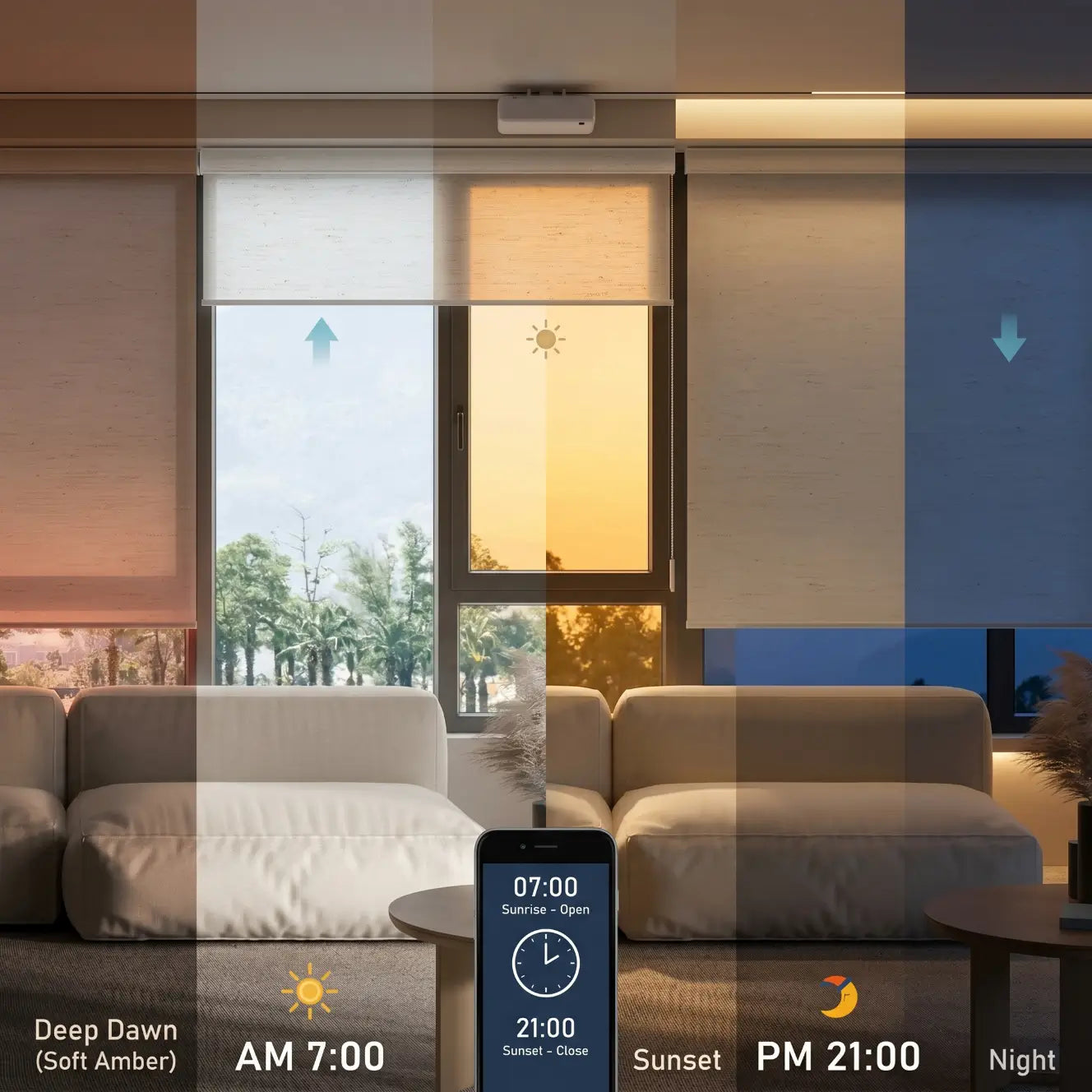
Enjoy a Smarter Home